> ## Documentation Index
> Fetch the complete documentation index at: https://docs.agen.co/llms.txt
> Use this file to discover all available pages before exploring further.
# Install Campaigns
> Create an install campaign in the Frontegg Portal — the enrollment token, the install command, and the ready-made MDM artifacts every rollout starts from.
 Every AgenShield rollout starts with an **install campaign**. A campaign is a
named enrollment channel: it mints a token, and everything a device needs to
join your fleet — the install command, the configuration profile, the installer
package — is generated from that token.
A campaign is the first of five things you set up. The whole Frontegg Portal journey
is: **campaign → devices → rules → telemetry → agent resources.** Each page
below links to the next.
## Create one
In the [Frontegg Portal](https://portal.frontegg.com), open **AgenShield →
Devices** (`https://portal.frontegg.com//agen/shielded/devices`),
then **New campaign.** There are only two fields:
| Field | Required | What it does |
| ------------------ | -------- | ------------------------------------------------------------------------------------------------------------------------------------ |
| **Name** | Yes | How you will recognise it later — `Engineering Macs`, `Design pilot`, `Contractors`. Shown on every device that enrolled through it. |
| **Pinned version** | No | Locks this campaign to one exact AgenShield release. Leave empty and devices install the latest published version. |
Pin a version when you are validating an upgrade on a small group, or when
change control requires a fixed build. Everyone else should leave it empty.
### Use more than one campaign
Campaigns are free, and they are how you segment a rollout. A campaign is the
unit you can revoke, pin to a version, and — with a connected MDM — map to its
own device group. Split them the way you would split a rollout wave:
| Campaign | Why a separate one |
| ------------- | ----------------------------------------------------- |
| `Pilot` | 3–5 Macs, pinned version, revoked when the pilot ends |
| `Engineering` | The main wave |
| `Contractors` | Different offboarding cadence, revoked more often |
A device belongs to exactly one campaign. With a connected MDM, that is enforced
for you — see [Microsoft Intune](../deployment/mdm/intune.mdx).
## What a campaign gives you
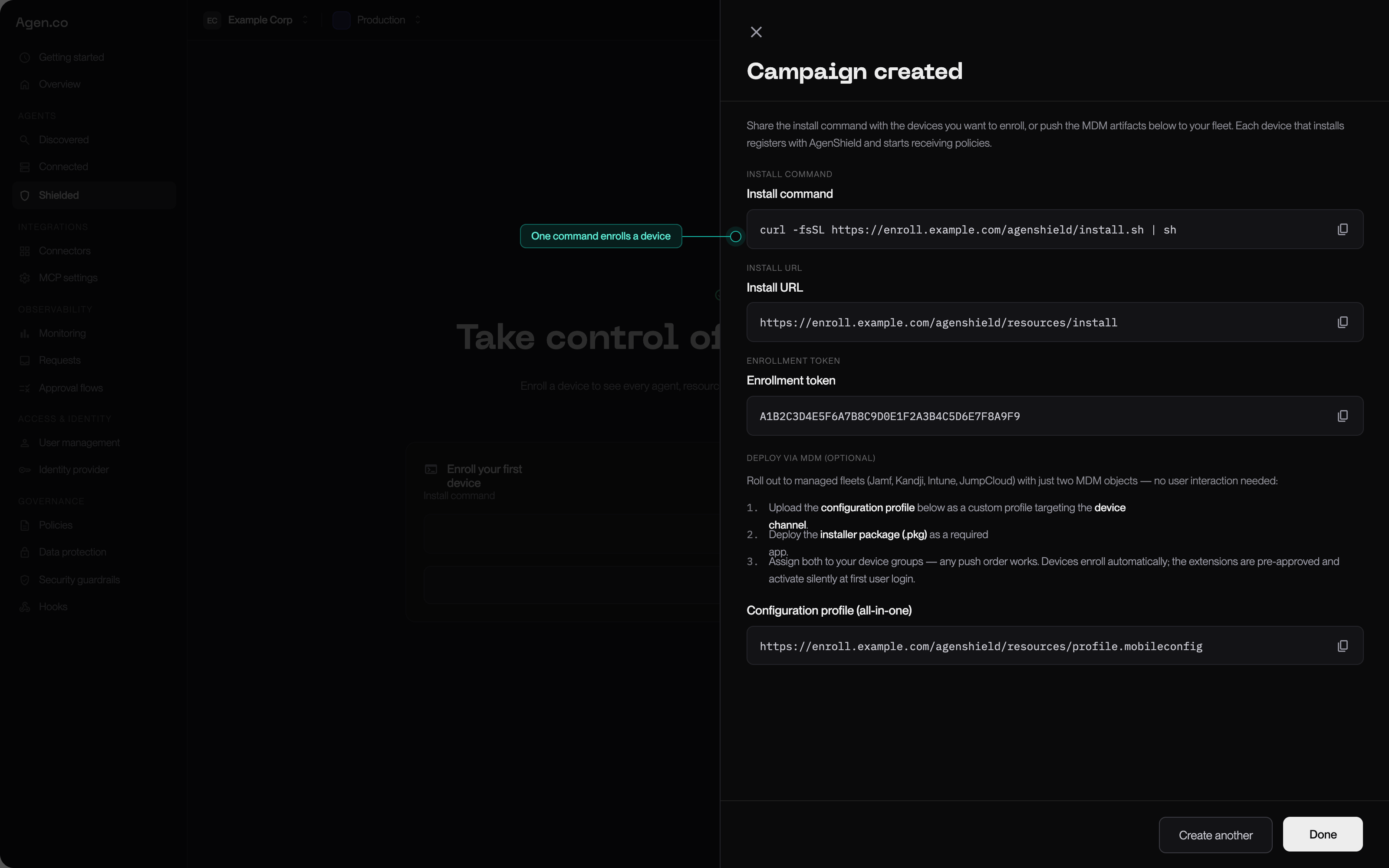
Once created, the campaign detail view carries everything a rollout needs.
Every AgenShield rollout starts with an **install campaign**. A campaign is a
named enrollment channel: it mints a token, and everything a device needs to
join your fleet — the install command, the configuration profile, the installer
package — is generated from that token.
A campaign is the first of five things you set up. The whole Frontegg Portal journey
is: **campaign → devices → rules → telemetry → agent resources.** Each page
below links to the next.
## Create one
In the [Frontegg Portal](https://portal.frontegg.com), open **AgenShield →
Devices** (`https://portal.frontegg.com//agen/shielded/devices`),
then **New campaign.** There are only two fields:
| Field | Required | What it does |
| ------------------ | -------- | ------------------------------------------------------------------------------------------------------------------------------------ |
| **Name** | Yes | How you will recognise it later — `Engineering Macs`, `Design pilot`, `Contractors`. Shown on every device that enrolled through it. |
| **Pinned version** | No | Locks this campaign to one exact AgenShield release. Leave empty and devices install the latest published version. |
Pin a version when you are validating an upgrade on a small group, or when
change control requires a fixed build. Everyone else should leave it empty.
### Use more than one campaign
Campaigns are free, and they are how you segment a rollout. A campaign is the
unit you can revoke, pin to a version, and — with a connected MDM — map to its
own device group. Split them the way you would split a rollout wave:
| Campaign | Why a separate one |
| ------------- | ----------------------------------------------------- |
| `Pilot` | 3–5 Macs, pinned version, revoked when the pilot ends |
| `Engineering` | The main wave |
| `Contractors` | Different offboarding cadence, revoked more often |
A device belongs to exactly one campaign. With a connected MDM, that is enforced
for you — see [Microsoft Intune](../deployment/mdm/intune.mdx).
## What a campaign gives you
Once created, the campaign detail view carries everything a rollout needs.
 ### For a single Mac, or a scripted rollout
| Artifact | Use it for |
| --------------------- | -------------------------------------------------------------------------------------------- |
| **Install command** | Paste-and-run, one Mac. This is what the [Quickstart](../getting-started/quickstart.md) uses |
| **Enrollment token** | Scripted installs and testing, where you supply the token yourself |
| **Uninstall command** | Removing AgenShield. Carries no token, so it is safe to hand to any end user |
### For a managed fleet
The campaign's **MDM artifacts** section carries per-campaign download URLs. The
configuration-profile URL is generated from the campaign token, so the profile
you download already contains your campaign token and backend URL — there is
nothing to hand-edit:
```text theme={"theme":{"light":"snazzy-light","dark":"dark-plus"}}
https:///resources/campaigns/v1//agenshield.mobileconfig
```
| Artifact | What it is |
| -------------------------------------- | ----------------------------------------------------------------------------------------------------------------------------- |
| **Configuration profile** (all-in-one) | One `.mobileconfig` carrying every payload AgenShield needs — enrollment, extension approval, Full Disk Access, notifications |
| **Installer package** | The signed, Apple-notarized `.pkg` |
| **Bootstrap package** | A tiny (under 1 MB) alternative `.pkg` that downloads and verifies the full installer on the device |
Push the profile and one of the two packages, and the rollout is done. See
[MDM enrollment](../deployment/mdm/overview.mdx) for what each payload does, and the
per-MDM pages for the exact clicks.
Because the profile URL is campaign-specific, you never edit a profile by
hand. Need a different campaign? Download that campaign's URL instead.
## Is the token a credential?
No — and this matters, because you will be pasting it into an MDM console and
possibly an onboarding document.
* It authorizes **enrollment only**. It cannot read policy, read telemetry, or
change anything in the Frontegg Portal.
* It is **revocable** at any time.
* The device's real, long-lived identity is a keypair generated **on the device**
during enrollment. The token is not that identity, and does not grant it.
## Watch a campaign work
The campaign detail view has an events timeline that tells you where a rollout is:
| Event | Means |
| ------------------ | ------------------------------------------------------- |
| **Created** | The campaign exists |
| **Script fetched** | Something downloaded the install script or a profile |
| **Registration** | A device completed enrollment — it is now on your fleet |
| **Revoked** | The token no longer accepts new enrollments |
Seeing `Script fetched` but never `Registration` is the classic MDM symptom: the
package reached the device but the profile did not, so there was no token to
enroll with. [MDM enrollment](../deployment/mdm/overview.mdx) covers how to confirm.
## Revoke a campaign
Revoking invalidates the token. Precisely:
* **New** devices can no longer enroll through it. The install script returns an
error.
* **Already-enrolled** devices are unaffected — they keep their own identity,
keep receiving policy, and keep reporting.
So revoking is *closing the door*, not *removing the software*. To actually take
AgenShield off a machine, offboard the device — see
[Enrolled devices](../deployment/devices.mdx).
Revoke a campaign when a pilot ends, when an onboarding document with the link
in it has gone stale, or any time you would rotate a shared link.
## Next
Push the campaign's profile and package to a managed fleet — no user interaction.
Use the install command on a single Mac instead.
What appears once devices start reporting, and how to read fleet health.
The phased path from pilot to enforcement.
### For a single Mac, or a scripted rollout
| Artifact | Use it for |
| --------------------- | -------------------------------------------------------------------------------------------- |
| **Install command** | Paste-and-run, one Mac. This is what the [Quickstart](../getting-started/quickstart.md) uses |
| **Enrollment token** | Scripted installs and testing, where you supply the token yourself |
| **Uninstall command** | Removing AgenShield. Carries no token, so it is safe to hand to any end user |
### For a managed fleet
The campaign's **MDM artifacts** section carries per-campaign download URLs. The
configuration-profile URL is generated from the campaign token, so the profile
you download already contains your campaign token and backend URL — there is
nothing to hand-edit:
```text theme={"theme":{"light":"snazzy-light","dark":"dark-plus"}}
https:///resources/campaigns/v1//agenshield.mobileconfig
```
| Artifact | What it is |
| -------------------------------------- | ----------------------------------------------------------------------------------------------------------------------------- |
| **Configuration profile** (all-in-one) | One `.mobileconfig` carrying every payload AgenShield needs — enrollment, extension approval, Full Disk Access, notifications |
| **Installer package** | The signed, Apple-notarized `.pkg` |
| **Bootstrap package** | A tiny (under 1 MB) alternative `.pkg` that downloads and verifies the full installer on the device |
Push the profile and one of the two packages, and the rollout is done. See
[MDM enrollment](../deployment/mdm/overview.mdx) for what each payload does, and the
per-MDM pages for the exact clicks.
Because the profile URL is campaign-specific, you never edit a profile by
hand. Need a different campaign? Download that campaign's URL instead.
## Is the token a credential?
No — and this matters, because you will be pasting it into an MDM console and
possibly an onboarding document.
* It authorizes **enrollment only**. It cannot read policy, read telemetry, or
change anything in the Frontegg Portal.
* It is **revocable** at any time.
* The device's real, long-lived identity is a keypair generated **on the device**
during enrollment. The token is not that identity, and does not grant it.
## Watch a campaign work
The campaign detail view has an events timeline that tells you where a rollout is:
| Event | Means |
| ------------------ | ------------------------------------------------------- |
| **Created** | The campaign exists |
| **Script fetched** | Something downloaded the install script or a profile |
| **Registration** | A device completed enrollment — it is now on your fleet |
| **Revoked** | The token no longer accepts new enrollments |
Seeing `Script fetched` but never `Registration` is the classic MDM symptom: the
package reached the device but the profile did not, so there was no token to
enroll with. [MDM enrollment](../deployment/mdm/overview.mdx) covers how to confirm.
## Revoke a campaign
Revoking invalidates the token. Precisely:
* **New** devices can no longer enroll through it. The install script returns an
error.
* **Already-enrolled** devices are unaffected — they keep their own identity,
keep receiving policy, and keep reporting.
So revoking is *closing the door*, not *removing the software*. To actually take
AgenShield off a machine, offboard the device — see
[Enrolled devices](../deployment/devices.mdx).
Revoke a campaign when a pilot ends, when an onboarding document with the link
in it has gone stale, or any time you would rotate a shared link.
## Next
Push the campaign's profile and package to a managed fleet — no user interaction.
Use the install command on a single Mac instead.
What appears once devices start reporting, and how to read fleet health.
The phased path from pilot to enforcement.