> ## Documentation Index
> Fetch the complete documentation index at: https://docs.agen.co/llms.txt
> Use this file to discover all available pages before exploring further.
# Microsoft Intune
> Connect your Microsoft Entra tenant to AgenShield and push install campaigns to Intune device groups from the Frontegg Portal — group creation, profile assignment, installer app, rollout progress, and clean offboarding.
 Intune is the one MDM AgenShield connects to directly. Connect your Microsoft
Entra tenant once, and every campaign afterwards deploys from the Frontegg Portal:
no downloading profiles, no uploading packages, no keeping two systems in
sync by hand.
Register one Entra app. AgenShield creates the group, the profile, the installer app, and the offboarding script for you — and can repair them if they drift.
Download the campaign's profile and package and push them yourself. Fully supported, no tenant connection.
***
# Connected integration
You do four things once — register an app, hand over two IDs, upload a
certificate, grant permissions — and from then on every campaign deploys with
one click from the Frontegg Portal.
## What AgenShield does on your behalf
Once connected, pushing a campaign creates and maintains these objects in your
tenant:
| Object | Purpose |
| ---------------------------- | ------------------------------------------------------------------------------------------ |
| **Entra security group** | One per campaign. Adding a device or user to it is what deploys AgenShield |
| **Configuration profile** | The campaign's profile, assigned to that group |
| **Installer app** | The signed package, published once per connection and assigned to every campaign group |
| **Uninstall script + group** | Shared across the connection. Offboarding moves a member here to remove AgenShield cleanly |
Your side of the deal is one thing: **put devices or users in the group.** You
can do that from the Frontegg Portal or from Intune — both work.
## Connect your tenant
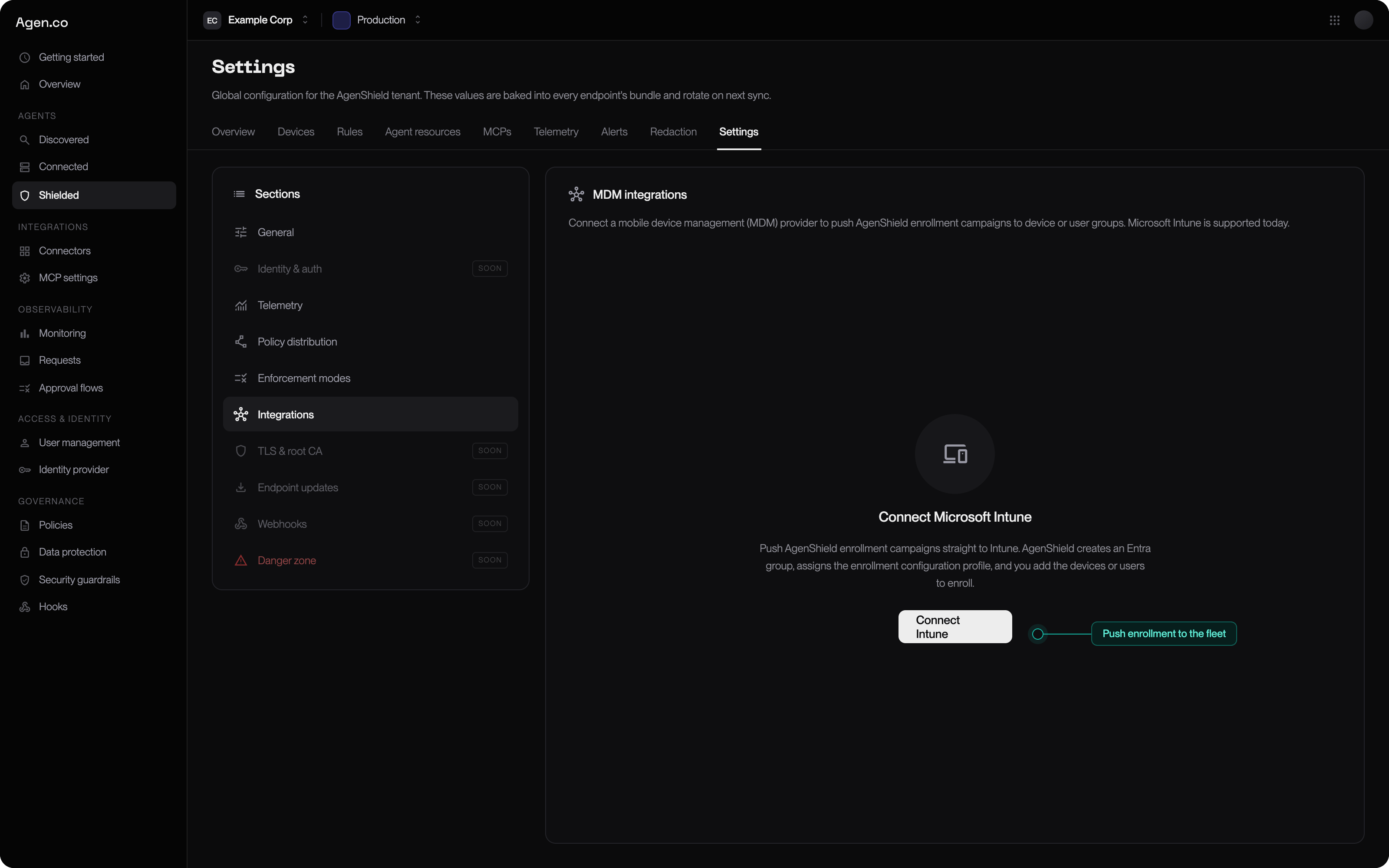
**Settings → Integrations → Connect Microsoft Intune.** The wizard has four
steps and takes about five minutes. AgenShield authenticates with a
**certificate it generates** — you never create, paste, or rotate a client
secret.
Intune is the one MDM AgenShield connects to directly. Connect your Microsoft
Entra tenant once, and every campaign afterwards deploys from the Frontegg Portal:
no downloading profiles, no uploading packages, no keeping two systems in
sync by hand.
Register one Entra app. AgenShield creates the group, the profile, the installer app, and the offboarding script for you — and can repair them if they drift.
Download the campaign's profile and package and push them yourself. Fully supported, no tenant connection.
***
# Connected integration
You do four things once — register an app, hand over two IDs, upload a
certificate, grant permissions — and from then on every campaign deploys with
one click from the Frontegg Portal.
## What AgenShield does on your behalf
Once connected, pushing a campaign creates and maintains these objects in your
tenant:
| Object | Purpose |
| ---------------------------- | ------------------------------------------------------------------------------------------ |
| **Entra security group** | One per campaign. Adding a device or user to it is what deploys AgenShield |
| **Configuration profile** | The campaign's profile, assigned to that group |
| **Installer app** | The signed package, published once per connection and assigned to every campaign group |
| **Uninstall script + group** | Shared across the connection. Offboarding moves a member here to remove AgenShield cleanly |
Your side of the deal is one thing: **put devices or users in the group.** You
can do that from the Frontegg Portal or from Intune — both work.
## Connect your tenant
**Settings → Integrations → Connect Microsoft Intune.** The wizard has four
steps and takes about five minutes. AgenShield authenticates with a
**certificate it generates** — you never create, paste, or rotate a client
secret.
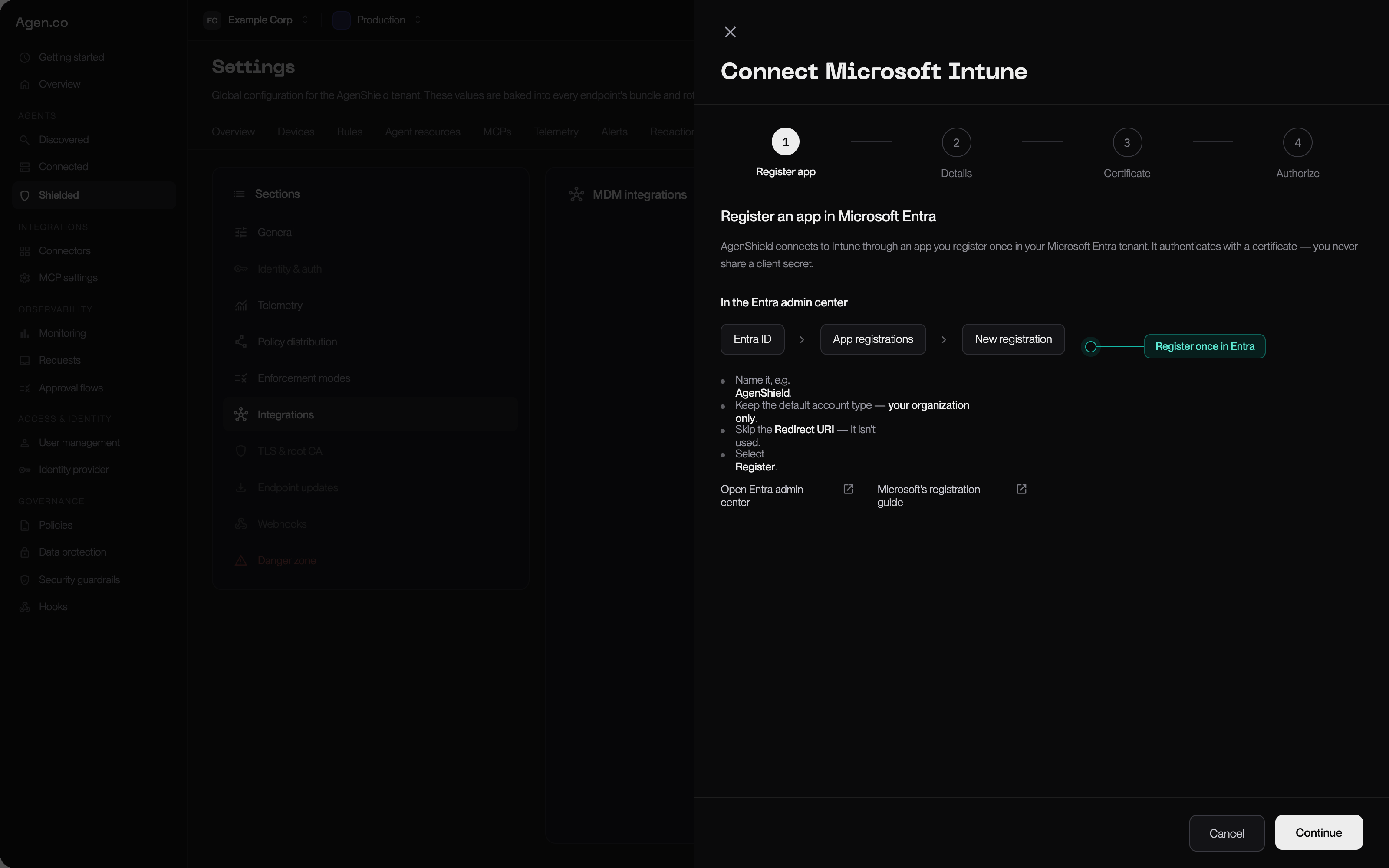
 ### 1. Register an app in Entra
In the Entra admin center: **Entra ID → App registrations → New registration.**
* Name it something recognisable, e.g. `AgenShield`.
* Keep the default account type — **your organization only**.
* Skip the redirect URI. It is not used.
* Select **Register**.
### 1. Register an app in Entra
In the Entra admin center: **Entra ID → App registrations → New registration.**
* Name it something recognisable, e.g. `AgenShield`.
* Keep the default account type — **your organization only**.
* Skip the redirect URI. It is not used.
* Select **Register**.
 ### 2. Give AgenShield the app's identifiers
Back in the wizard, enter a name for the connection plus the two GUIDs from your
new app registration's overview page:
| Field | Where to find it |
| --------------------------- | ------------------------- |
| **Directory (tenant) ID** | App registration overview |
| **Application (client) ID** | App registration overview |
### 3. Upload the certificate
AgenShield generates a keypair, keeps the private key encrypted, and hands you
the public half. Download it, then in your app registration go to
**Certificates & secrets → Certificates → Upload certificate** and add the file.
The wizard shows the **SHA-1 thumbprint** Entra will display after upload —
compare the two to confirm you uploaded the right file to the right app.
### 4. Add permissions and grant consent
**API permissions → Add a permission → Microsoft Graph → Application
permissions.**
Pick the **Application permissions** tile. **Delegated** — the tab Entra opens
first — will not work: AgenShield runs with no signed-in user, and the
connection test fails with a Microsoft "UnknownError" if the permissions were
added as Delegated. This is the single most common setup mistake.
**Required.** The connection test probes each of these individually, so a
failure tells you exactly which one is missing.
| Permission | What it is for |
| --------------------------------------------- | -------------------------------------------------------------------------------------------- |
| `DeviceManagementConfiguration.ReadWrite.All` | Creates the campaign's configuration profile and assigns it. Also proves your Intune license |
| `DeviceManagementApps.ReadWrite.All` | Publishes the installer package as an Intune app — this is what installs AgenShield |
| `DeviceManagementScripts.ReadWrite.All` | Creates the uninstall script used for offboarding |
| `Group.ReadWrite.All` | Creates the campaign and offboarding groups and manages their membership |
Each unlocks one specific feature and nothing else. To add one later, append
the permission and re-run **Grant admin consent** — no reconnection needed.
| Permission | Enables | If you skip it |
| ----------------------------------------- | -------------------------------------------------------------------- | ---------------------------------------------------------------------------------- |
| `Device.Read.All` | Browsing your device directory from the Frontegg Portal | Add devices to the group from Intune or Entra instead |
| `User.Read.All` | Browsing your users from the Frontegg Portal | Manage user-group membership from Intune or Entra instead |
| `DeviceManagementManagedDevices.Read.All` | Rollout progress, and matching enrolled Macs to their Intune records | Pushes and offboarding still work; the rollout view reports the missing permission |
Then select **Grant admin consent for your organization**, confirm, and
**Refresh** — every row must read "Granted". Finally, run the wizard's
connection test.
Entra propagates consent and certificate changes with a lag, so a test run
immediately after setup can fail and then pass. AgenShield retries
automatically before reporting an error. If it still fails, **Settings →
Integrations** shows a live per-permission status — it names the exact grant
that is missing rather than making you guess.
## Push a campaign
From **Devices** (on the campaign) or **Settings → Integrations**, choose
**Push to Intune**:
1. Pick the campaign.
2. Name the group — e.g. `AgenShield — Engineering Macs`.
3. Choose whether members will be **devices** or **users**.
AgenShield creates the group, materializes and assigns the campaign profile,
and assigns the installer app. It runs in the background and usually completes
in under a minute; the screen updates itself.
Then **add members**. Nothing deploys until the group has members — Intune
applies a profile only to members of the group it is assigned to.
Membership changes take a few minutes to reach devices. That is Intune's
check-in cadence, not AgenShield.
### One device, one campaign
A device or user may belong to **only one AgenShield campaign group per
connection**. If you try to add one that is already in another campaign's group,
the whole request is refused and the conflicts are listed — moving a device
between campaigns is a decision, not a side effect. Confirm, and AgenShield
removes it from the other group first.
## Track the rollout
With `DeviceManagementManagedDevices.Read.All` granted, the push view joins your
group membership against Intune's device inventory and against the Macs that
actually enrolled:
| State | Meaning |
| ------------- | ------------------------------------------------------------ |
| **Connected** | AgenShield is installed and the Mac is reporting recently |
| **Installed** | AgenShield is installed, but the Mac has not reported lately |
| **Pending** | In the group, AgenShield not installed yet |
It also lists enrolled devices that are **not** in the group — usually machines
that were installed by script before the MDM push existed.
## Offboard a device
Use **Offboard**, not "remove from group".
Removing a member from the campaign group does **not** uninstall AgenShield.
MDMs run scripts when a device is *added* to a group, never when it is
removed — so a plain removal leaves the software installed and merely
unmanaged.
Offboarding does both halves: it removes the member from the campaign group
**and** adds it to the connection's uninstall group, whose assigned script
removes AgenShield at the next check-in. Re-onboarding later pulls it back out
of the uninstall group automatically, so no device ever sits in both.
## Keep it healthy
Two maintenance actions, both in **Settings → Integrations**:
| Action | When to use it |
| --------------- | -------------------------------------------------------------------------------------------------------------------------------------------------------------------------------------------------- |
| **Check setup** | Read-only verification of everything the push created — group, profile, installer app, offboarding script. It also confirms the deployed profile still byte-matches the campaign's current profile |
| **Repair** | Re-runs the push. Recreates anything deleted, renames a renamed group back, refreshes the profile and script to current, and re-asserts assignments |
If someone edits or deletes an AgenShield object in Intune or Entra, **Check
setup** reports it and **Repair** converges it back.
**Publishing a new release:** the installer app is published once per connection
and shared by every campaign group. After a new AgenShield release, re-publish
it from the connection — every campaign picks up the new version without being
re-pushed.
***
# Manual upload
No tenant connection, no app registration. Download the two artifacts from the
campaign and push them yourself.
### The configuration profile
1. **Devices → Manage devices → Configuration → Create → New policy**.
2. Platform **macOS**, profile type **Templates → Custom**.
3. Name it, e.g. `AgenShield`, and upload `agenshield.mobileconfig`.
4. **Deployment channel: Device channel.**
5. Assign it to your target device group.
The deployment channel is the setting people get wrong. User-channel delivery
breaks the system-extension and managed-preferences payloads, and the channel
is **immutable after creation** — if you picked wrong, delete the profile and
create a new one.
### The installer package
1. **Apps → macOS → Add → macOS app (PKG)**.
2. Upload the campaign's package.
3. Included app: bundle ID `com.frontegg.AgenShield`, and the package's version.
4. Assign as **Required** to the same group.
Notes: the unmanaged-PKG app type installs through the Intune management agent
(version 2308.006 or later), and devices need an active Intune license. If your
tenant uses Multi-Admin Approval, the profile and app may sit in pending
approval before they deploy.
Using the split profiles instead of the all-in-one? Repeat the profile steps for
each file — device channel on all of them.
## Next
Reading fleet health once devices land.
What each profile payload does, and how to verify a device.
### 2. Give AgenShield the app's identifiers
Back in the wizard, enter a name for the connection plus the two GUIDs from your
new app registration's overview page:
| Field | Where to find it |
| --------------------------- | ------------------------- |
| **Directory (tenant) ID** | App registration overview |
| **Application (client) ID** | App registration overview |
### 3. Upload the certificate
AgenShield generates a keypair, keeps the private key encrypted, and hands you
the public half. Download it, then in your app registration go to
**Certificates & secrets → Certificates → Upload certificate** and add the file.
The wizard shows the **SHA-1 thumbprint** Entra will display after upload —
compare the two to confirm you uploaded the right file to the right app.
### 4. Add permissions and grant consent
**API permissions → Add a permission → Microsoft Graph → Application
permissions.**
Pick the **Application permissions** tile. **Delegated** — the tab Entra opens
first — will not work: AgenShield runs with no signed-in user, and the
connection test fails with a Microsoft "UnknownError" if the permissions were
added as Delegated. This is the single most common setup mistake.
**Required.** The connection test probes each of these individually, so a
failure tells you exactly which one is missing.
| Permission | What it is for |
| --------------------------------------------- | -------------------------------------------------------------------------------------------- |
| `DeviceManagementConfiguration.ReadWrite.All` | Creates the campaign's configuration profile and assigns it. Also proves your Intune license |
| `DeviceManagementApps.ReadWrite.All` | Publishes the installer package as an Intune app — this is what installs AgenShield |
| `DeviceManagementScripts.ReadWrite.All` | Creates the uninstall script used for offboarding |
| `Group.ReadWrite.All` | Creates the campaign and offboarding groups and manages their membership |
Each unlocks one specific feature and nothing else. To add one later, append
the permission and re-run **Grant admin consent** — no reconnection needed.
| Permission | Enables | If you skip it |
| ----------------------------------------- | -------------------------------------------------------------------- | ---------------------------------------------------------------------------------- |
| `Device.Read.All` | Browsing your device directory from the Frontegg Portal | Add devices to the group from Intune or Entra instead |
| `User.Read.All` | Browsing your users from the Frontegg Portal | Manage user-group membership from Intune or Entra instead |
| `DeviceManagementManagedDevices.Read.All` | Rollout progress, and matching enrolled Macs to their Intune records | Pushes and offboarding still work; the rollout view reports the missing permission |
Then select **Grant admin consent for your organization**, confirm, and
**Refresh** — every row must read "Granted". Finally, run the wizard's
connection test.
Entra propagates consent and certificate changes with a lag, so a test run
immediately after setup can fail and then pass. AgenShield retries
automatically before reporting an error. If it still fails, **Settings →
Integrations** shows a live per-permission status — it names the exact grant
that is missing rather than making you guess.
## Push a campaign
From **Devices** (on the campaign) or **Settings → Integrations**, choose
**Push to Intune**:
1. Pick the campaign.
2. Name the group — e.g. `AgenShield — Engineering Macs`.
3. Choose whether members will be **devices** or **users**.
AgenShield creates the group, materializes and assigns the campaign profile,
and assigns the installer app. It runs in the background and usually completes
in under a minute; the screen updates itself.
Then **add members**. Nothing deploys until the group has members — Intune
applies a profile only to members of the group it is assigned to.
Membership changes take a few minutes to reach devices. That is Intune's
check-in cadence, not AgenShield.
### One device, one campaign
A device or user may belong to **only one AgenShield campaign group per
connection**. If you try to add one that is already in another campaign's group,
the whole request is refused and the conflicts are listed — moving a device
between campaigns is a decision, not a side effect. Confirm, and AgenShield
removes it from the other group first.
## Track the rollout
With `DeviceManagementManagedDevices.Read.All` granted, the push view joins your
group membership against Intune's device inventory and against the Macs that
actually enrolled:
| State | Meaning |
| ------------- | ------------------------------------------------------------ |
| **Connected** | AgenShield is installed and the Mac is reporting recently |
| **Installed** | AgenShield is installed, but the Mac has not reported lately |
| **Pending** | In the group, AgenShield not installed yet |
It also lists enrolled devices that are **not** in the group — usually machines
that were installed by script before the MDM push existed.
## Offboard a device
Use **Offboard**, not "remove from group".
Removing a member from the campaign group does **not** uninstall AgenShield.
MDMs run scripts when a device is *added* to a group, never when it is
removed — so a plain removal leaves the software installed and merely
unmanaged.
Offboarding does both halves: it removes the member from the campaign group
**and** adds it to the connection's uninstall group, whose assigned script
removes AgenShield at the next check-in. Re-onboarding later pulls it back out
of the uninstall group automatically, so no device ever sits in both.
## Keep it healthy
Two maintenance actions, both in **Settings → Integrations**:
| Action | When to use it |
| --------------- | -------------------------------------------------------------------------------------------------------------------------------------------------------------------------------------------------- |
| **Check setup** | Read-only verification of everything the push created — group, profile, installer app, offboarding script. It also confirms the deployed profile still byte-matches the campaign's current profile |
| **Repair** | Re-runs the push. Recreates anything deleted, renames a renamed group back, refreshes the profile and script to current, and re-asserts assignments |
If someone edits or deletes an AgenShield object in Intune or Entra, **Check
setup** reports it and **Repair** converges it back.
**Publishing a new release:** the installer app is published once per connection
and shared by every campaign group. After a new AgenShield release, re-publish
it from the connection — every campaign picks up the new version without being
re-pushed.
***
# Manual upload
No tenant connection, no app registration. Download the two artifacts from the
campaign and push them yourself.
### The configuration profile
1. **Devices → Manage devices → Configuration → Create → New policy**.
2. Platform **macOS**, profile type **Templates → Custom**.
3. Name it, e.g. `AgenShield`, and upload `agenshield.mobileconfig`.
4. **Deployment channel: Device channel.**
5. Assign it to your target device group.
The deployment channel is the setting people get wrong. User-channel delivery
breaks the system-extension and managed-preferences payloads, and the channel
is **immutable after creation** — if you picked wrong, delete the profile and
create a new one.
### The installer package
1. **Apps → macOS → Add → macOS app (PKG)**.
2. Upload the campaign's package.
3. Included app: bundle ID `com.frontegg.AgenShield`, and the package's version.
4. Assign as **Required** to the same group.
Notes: the unmanaged-PKG app type installs through the Intune management agent
(version 2308.006 or later), and devices need an active Intune license. If your
tenant uses Multi-Admin Approval, the profile and app may sit in pending
approval before they deploy.
Using the split profiles instead of the all-in-one? Repeat the profile steps for
each file — device channel on all of them.
## Next
Reading fleet health once devices land.
What each profile payload does, and how to verify a device.