
 Every AgenShield rollout starts with an install campaign. A campaign is a
named enrollment channel: it mints a token, and everything a device needs to
join your fleet — the install command, the configuration profile, the installer
package — is generated from that token.
Every AgenShield rollout starts with an install campaign. A campaign is a
named enrollment channel: it mints a token, and everything a device needs to
join your fleet — the install command, the configuration profile, the installer
package — is generated from that token.
A campaign is the first thing you set up. From here the path is: campaign →
deploy to your fleet → devices → rules → telemetry. Deploying to a managed
fleet is MDM enrollment; a single Mac is the
Quickstart.
Create one
In the Frontegg Portal, open AgenShield → Devices (https://portal.frontegg.com/<environment>/agen/shielded/devices),
then New campaign. There are only two fields:
Pin a version when you are validating an upgrade on a small group, or when
change control requires a fixed build. Everyone else should leave it empty.
Use more than one campaign
Campaigns are free, and they are how you segment a rollout. A campaign is the unit you can revoke, pin to a version, and — with a connected MDM — map to its own device group. Split them the way you would split a rollout wave:
A device belongs to exactly one campaign. With a connected MDM, that is enforced
for you — see Microsoft Intune.
What a campaign gives you
Once created, the campaign detail view carries everything a rollout needs.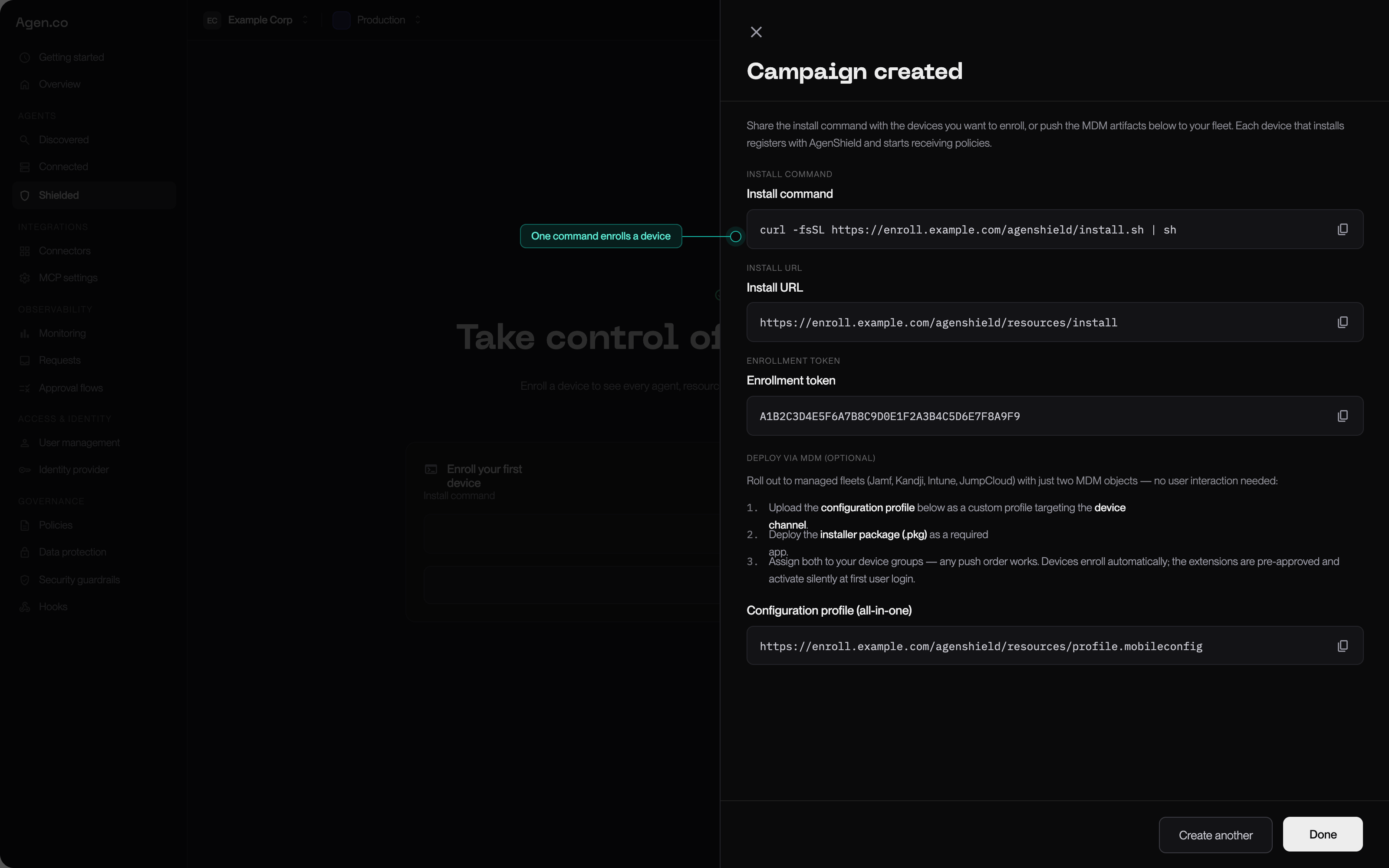
The campaign detail view — the install command, install URL, and enrollment token, ready to copy.
For a single Mac, or a scripted rollout
For a managed fleet
The campaign’s MDM artifacts section carries per-campaign download URLs. The configuration-profile URL is generated from the campaign token, so the profile you download already contains your campaign token and backend URL — there is nothing to hand-edit:
Push the recommended profile and run the install command, and the rollout is
done. See MDM enrollment for the guided path and what
each payload does, and the per-MDM pages for the exact clicks.
Pinning a version
Some MDMs want a package URL they can hold still, rather than an upload. Released versions live at stable, immutable addresses:latest.txt in the same place:
There is no “latest” package address on purpose —
latest.txt is a pointer you
read, not a file you deploy. Pinning is a deliberate act, so an MDM can never
quietly move a fleet onto a release you have not validated.Is the token a credential?
Yes — a narrow one. It matters because you will be pasting it into an MDM console and possibly an onboarding document. What it cannot do:- It authorizes enrollment only. It cannot read policy, read telemetry, or change anything in the Frontegg Portal.
- The device’s real, long-lived identity is a keypair generated on the device during enrollment. The token is not that identity, does not grant it, and cannot be used to impersonate a Mac that has already enrolled.
- Anyone holding it can enroll a machine into your fleet. It is a bearer token: possession is the whole check.
- It does not expire. It stays valid until you revoke it, which you can do at any time — revoking is also how you “rotate” one, since a campaign’s token cannot be changed in place.
- So scope it to the devices you mean to deploy to, and revoke and reissue the campaign if it leaks.
Which artifacts carry it
If you would rather no token sat on the device at rest, push
deployment.mobileconfig plus the install command instead of the all-in-one
profile. Both shapes deploy the same product.
Watch a campaign work
The campaign detail view has an events timeline that tells you where a rollout is:
Seeing
Script fetched but never Registration is the classic MDM symptom: the
package reached the device but the profile did not, so there was no token to
enroll with. MDM enrollment covers how to confirm.
Revoke a campaign
Revoking invalidates the token. Precisely:- New devices can no longer enroll through it. The install script returns an error.
- Already-enrolled devices are unaffected — they keep their own identity, keep receiving policy, and keep reporting.
Next
MDM enrollment
Push the campaign’s profile and package to a managed fleet — no user interaction.
Quickstart
Use the install command on a single Mac instead.
Enrolled devices
What appears once devices start reporting, and how to read fleet health.
Rollout playbook
The phased path from pilot to enforcement.